
No products selected.

 DW Extensions
- Car Rental System
- Survey Manager
- Maps Inserter for Google Maps
- Advanced Form to Email PHP
- Advanced Form to Email ASP
- Posts Carousel
- Comments Inserter Widget for Facebook
- Mobile Optimize
- Photoshow
- Smart List
- Light Date Picker Calendar
- Touch OnOff
- Touch Button
- Light Edit
- Advanced Form to Excel PHP
- Text Tools
- Advanced Database Relational List
 Free Tools
 Another Resources
 Product Info
Demo / Video / Faq
 Instant Download

Paypal: You will return from Paypal to a direct download page. A copy of your personal donwload link will be sent to the email address used for payment.
Be sure to check also your spam/bulk mail folder.

Touch Button
One of the most significant visual controls developed for the iPhone are its buttons, those shown on the top bar as well as push buttons. The first group has a very specific design: you can distinguish at first sight which of those buttons directs us to a previous screen or to the next, thanks to the arrow symbol in one direction or the other. In the push buttons case, two states are differentiated when we have a button selected on the webpage. We have created iPhone Button based on the iPhone visual controls that allow us to insert links with visual features that unveil its semantics on a webpage.
iPhone Button has been developed as an extension for Adobe Dreamweaver which makes it extremely easy and intuitive to insert such buttons in a web page.
FEATURES
- The Touch Button's visual aspect is simple and sleek
- Can be used replacing the links in a web page by a more semantic and aesthetic control
- Has been developed as a Dreamweaver extension, that fact simplifies insertion and does not require any further web programming knowledge for its use.
- The element is functional inclusive with the Javascript disable in the browser
REQUIREMENTS
The requirements for using Touch Button are minimal, you only need Adobe Dreamweaver MX 2004 or newer (including Dreamweaver CS4, CS5, CS6, CC ...).
INSTALLATION
To install Touch Button, like any other Adobe Dreamweaver extension, you will require the Adobe Extension Manager, which is distributed along with Dreamweaver. Run the "Install" option in Adobe Extension Manager and enter the path to the downloaded .mxp file.
Touch Button creates two new entries in the
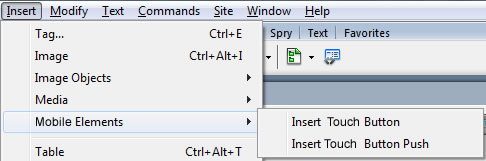
Fig.1 Menu options
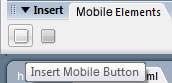
Fig.2 Insert bar options
Use
To insert Touch Button into a website you will need to load the webpage in the editor mode in Adobe Dreamweaver. Then place the cursor at the location where you want to insert Touch Button and click
Interface
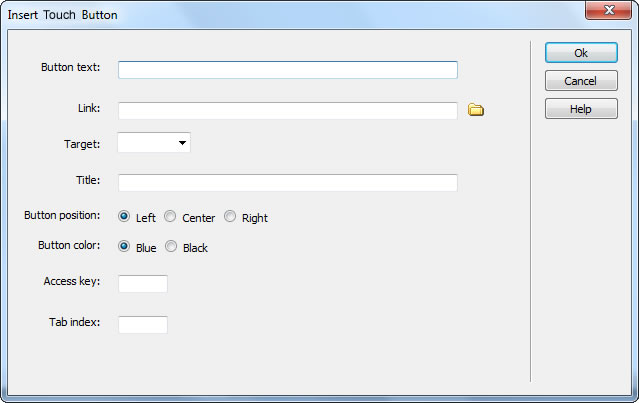
Button Text: Enter the text to be shown on the button.
Link: Select or enter the website or bookmark to be redirected to when button is pressed.
Target: Select or enter where to open the linked website.
Title: Enter text to be displayed when mouse is positioned over the button.
Button Position: Select whether the button will be right, left or central. The design of the button will depend on this option. A button identified as left shows a design where the left side is the most representative, so does the button identified as a right. In the case of button defined as central, both sides are equally representative.
Button Color: In the current version of the product we offer two possible colors for each of the buttons: blue and black for common buttons, blue and gray for push buttons. These colors have been selected by being the most widely used within the iPhone design guidelines.
Access key: Enter a "letter" that will allow a shortcut to the button. In Windows it is done by hitting Alt+"letter"; in Mac, Ctrl+"letter" when in a browser.
Tab index: Enter a number for the tab order.
Once an Touch Button is inserted in the website, if you want to edit some of its visual features, such as position or color, select the button (more precisely, the <SPAN> label within the "iphone-button-mark" class) and change the desired option in the Property inspector.
To modify the link, target or any other button options, simply click on the link found inside and modify its properties in the property inspector.
Remember that at the end, both the modified web page and the folder structure generated by the extension should be updated on your Web server.
Instant Download
$9.99
Paypal: You will return from Paypal to a direct download page. A copy of your personal donwload link will be sent to the email address used for payment.
Be sure to check also your spam/bulk mail folder.

